Deploy Pro Ticket Discord Bot
Ticket bot. 3 languages (PT, ES, EN). Web panel for stats, reports & config
Pro Ticket Bot
Just deployed

MongoDB
Just deployed
/data/db
Deploy and Host Pro Ticket Discord Bot on Railway
Professional Discord bot for ticket management with 30+ slash commands, Steam OAuth verification, dynamic voice channels, welcome DMs, mutual rating system, smart tags, custom fields, HTML transcripts, and scheduled reports. Multi-language: PT-BR, EN-US, ES-ES. One-click deploy — just provide bot token and server ID.
About Hosting Pro Ticket Discord Bot
Hosting Pro Ticket on Railway provides a complete infrastructure with MongoDB, automatic SSL, and on-demand scalability. This template includes pre-configured environment variables and automatic database connection. The deploy configures the bot with all dependencies, making it production-ready in minutes — just provide the Discord bot token and server ID. All other variables (database, collections, API URL) are auto-configured. Steam verification optionally requires Public Networking enabled on port 8080.
Common Use Cases
- Game Server Support — Tickets categorized by game server (DayZ, Rust, SCUM, etc.), mandatory Steam verification, staff performance tracking, and automatic HTML transcripts
- Professional Helpdesk — SLA tracking (response/resolution times), staff reports, smart tags, custom fields, announcements, configurable notifications, and scheduled reports (daily/weekly/monthly)
- Community Management — Dynamic voice channels, welcome DMs, identity verification, mutual user↔staff rating system, behavior tracking, blacklist, and anti-flood protection
Dependencies for Pro Ticket Discord Bot Hosting
- MongoDB — Stores tickets, settings, users, and verifications (included in template)
- Node.js >= 20 — Bot runtime (handled automatically by Railway)
- Discord Bot Token — From Discord Developer Portal (see setup guide below)
- Discord Client Secret — OAuth2 Client Secret from Discord Developer Portal (see setup guide below)
- Discord Server ID — The server where the bot will operate (see setup guide below)
- Steam API Key (optional) — Only for Steam verification image display (get here)
Deployment Dependencies
- Railway Account
- Discord Developer Portal — To create and configure the bot
- A Discord server where you have Administrator permission
Implementation Details
Pre-Deploy: Discord Bot Setup
Step 1 — Create Application: Go to Discord Developer Portal → Click "New Application" → Name it (e.g. "My Ticket Bot") → Click "Create".
Step 2 — Configure Bot: In the left menu, click "Bot":
- Disable "Public Bot" (ensures only you can add the bot to servers)
- Enable "Server Members Intent" (required for welcome DMs and member detection)
- Enable "Message Content Intent" (required for ticket activity tracking and anti-flood)
- Presence Intent is NOT required
Step 3 — Get Bot Token: On the "Bot" page → Click "Reset Token" → Copy and save the token securely. The token is shown only once. Never share it — if compromised, reset it immediately.
Step 4 — Get Client Secret:
In the left menu, click "OAuth2" → "General" → Under "Client Information", click "Reset Secret" (if you don't have one saved) → Copy and save the Client Secret securely. It is shown only once; use it for the variable DISCORD_CLIENT_SECRET. If you lose it, reset the secret again in the portal.
Step 4.1 — OAuth2 Redirect URL (for web panel): After you deploy on Railway, you will add the OAuth2 redirect URL in the Discord Developer Portal so the web panel login works. See Post-Deploy Step 2 below — you need your Railway public domain first.
Step 5 — Invite Bot to Your Server:
In the left menu, click "OAuth2" → Under "Scopes", check bot and applications.commands → Under "Bot Permissions", check Administrator → Copy the generated URL at the bottom → Open it in your browser → Select your server → Click "Authorize".
Step 6 — Get Server ID: In Discord: go to User Settings (⚙️) → Advanced → Enable "Developer Mode" → Close settings → Right-click your server icon in the server list → Click "Copy Server ID". Save this number.
Step 7 — Steam API Key (Optional): Only used do see the user's profile image in the Steam verification. Go to steamcommunity.com/dev/apikey → Login → Register a key → Copy it.
Deploy
Click the Deploy button → Set the required variables:
BOT_TOKEN— Your bot token (Step 3)DISCORD_CLIENT_SECRET— Your OAuth2 Client Secret (Step 4)GUILD_ID— Your server ID (Step 6)STEAM_API_KEY— (Optional) Steam API key (Step 7)
All other variables are pre-configured automatically. Click Deploy and wait 2-5 minutes.
Web panel: After configuring the OAuth2 redirect (Post-Deploy Step 2), open your Railway public URL in the browser to access the web panel. Log in with Discord and use it to view ticket and staff statistics/reports, change bot settings, and manage configuration — in addition to slash commands in Discord.
Post-Deploy Steps
-
Verify the bot appears online in your Discord server
-
Configure OAuth2 Redirect (for web panel): The template generates a public URL automatically.
- Copy the URL in Railway: Open your project → select the Pro Ticket service → Settings → Networking. The public domain is shown there (e.g.
pro-ticket-production-xxxx.up.railway.app). Copy that domain. - Add it in Discord: Go to Discord Developer Portal → your application → OAuth2 → Redirects → Add Redirect. In the redirect field, paste this URL, replacing
YOUR_RAILWAY_DOMAINwith the domain you copied:
Example: if your domain ishttps://YOUR_RAILWAY_DOMAIN/api/auth/discord/callbackpro-ticket-abc123.up.railway.app, the redirect must behttps://pro-ticket-abc123.up.railway.app/api/auth/discord/callback. Then click Save.
- Copy the URL in Railway: Open your project → select the Pro Ticket service → Settings → Networking. The public domain is shown there (e.g.
-
Use
/startto run initial setup: select timezone, language (PT-BR/EN-US/ES-ES), ticket category, transcript channel, attachments channel, and staff role -
Use
/ticket setup-panelin the channel where users should open tickets -
(Optional) For Steam verification: in Railway, go to your bot service → Settings → Networking → Public Networking → set port
8080. Then in Discord use/config-verificationcommands and/config-steam-buttons -
(Optional) Configure welcome DMs:
/welcome-message -
(Optional) Set up auto voice channels:
/autovoice add -
Explore all commands:
/help admin
Key Features
After the bot is online, run /start for the initial setup (timezone, language, ticket category, transcript/attachments channels, staff role). Then publish the panel with /ticket setup-panel, or you can use the web panel to publish the panel.
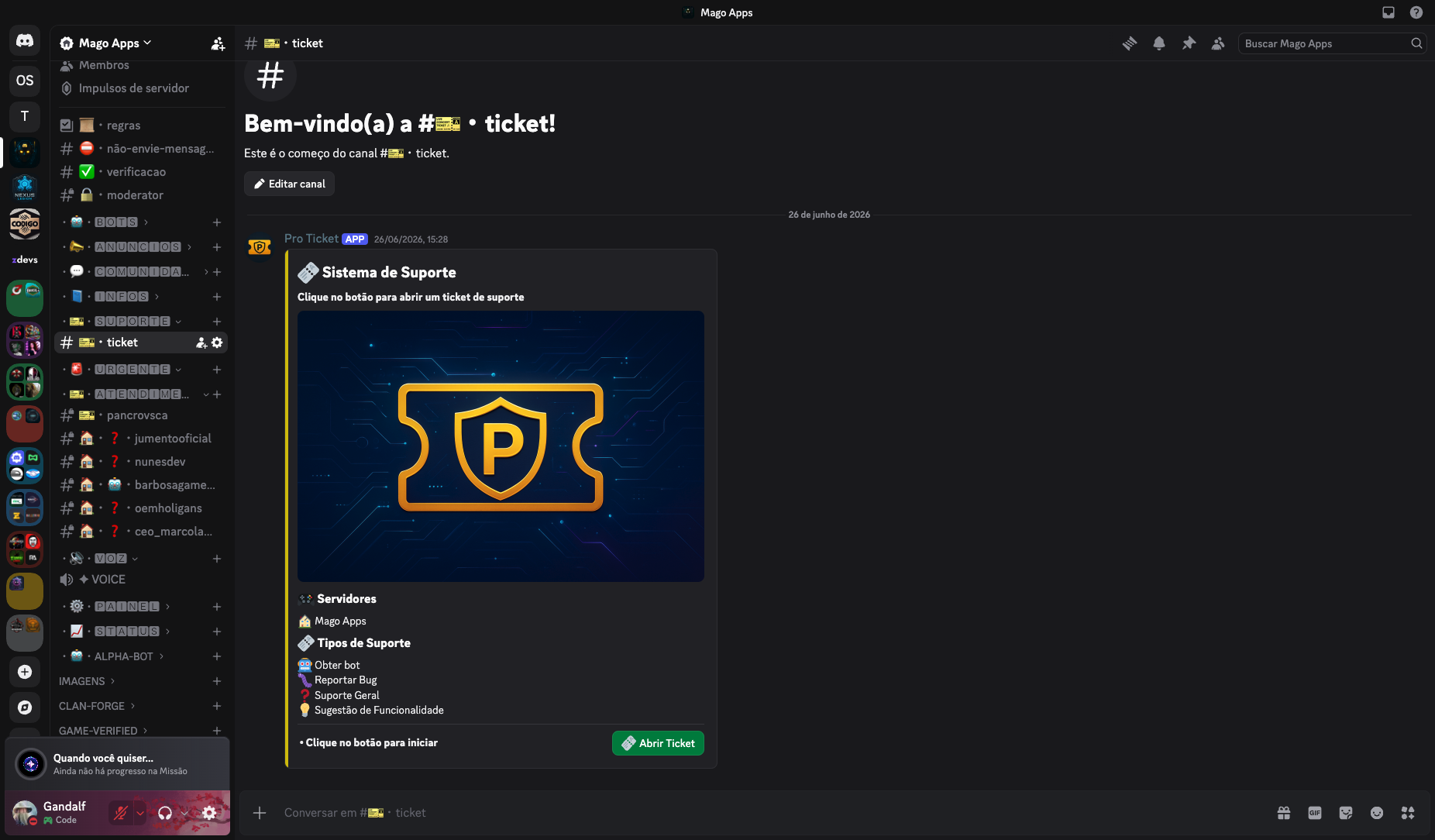
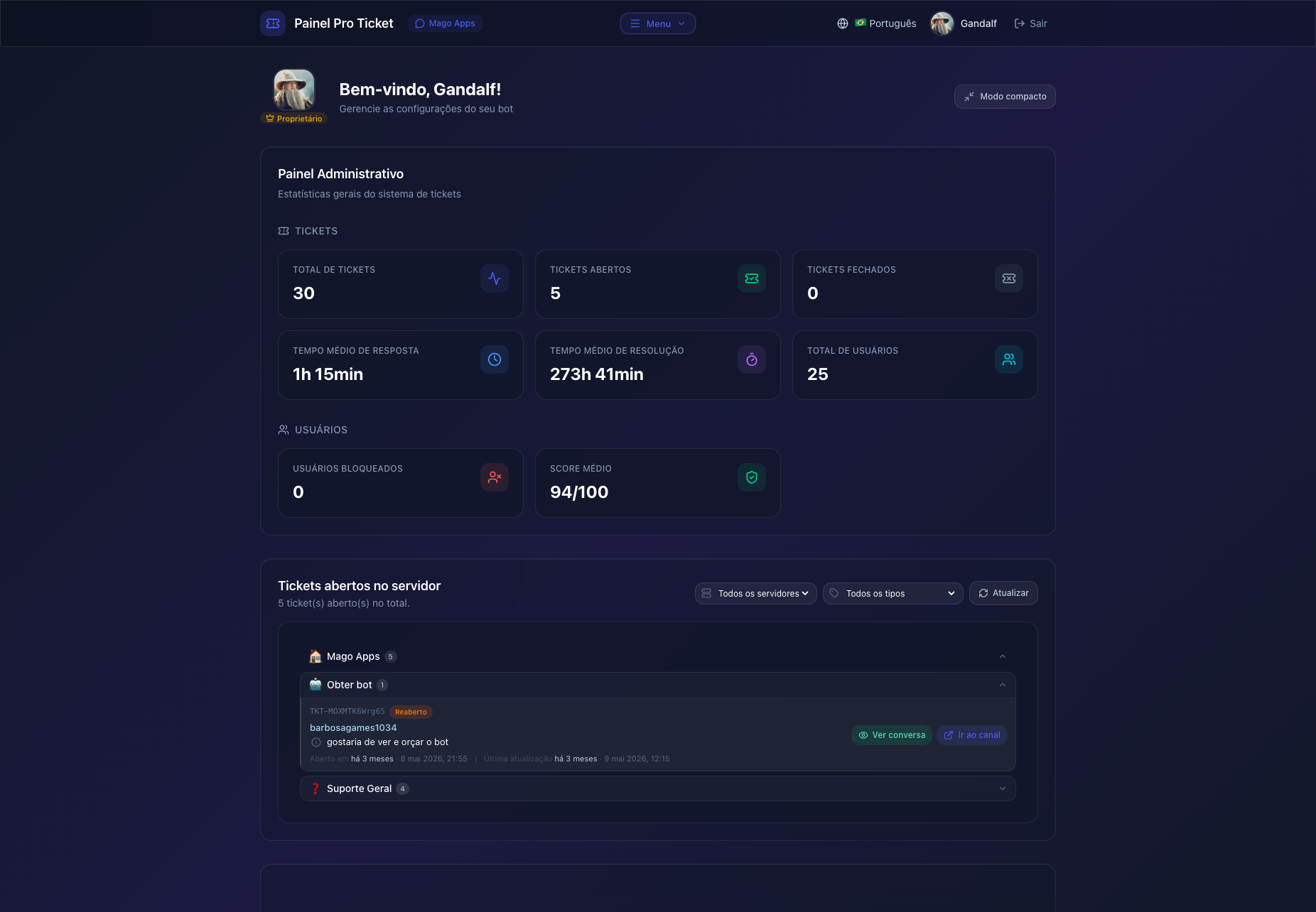
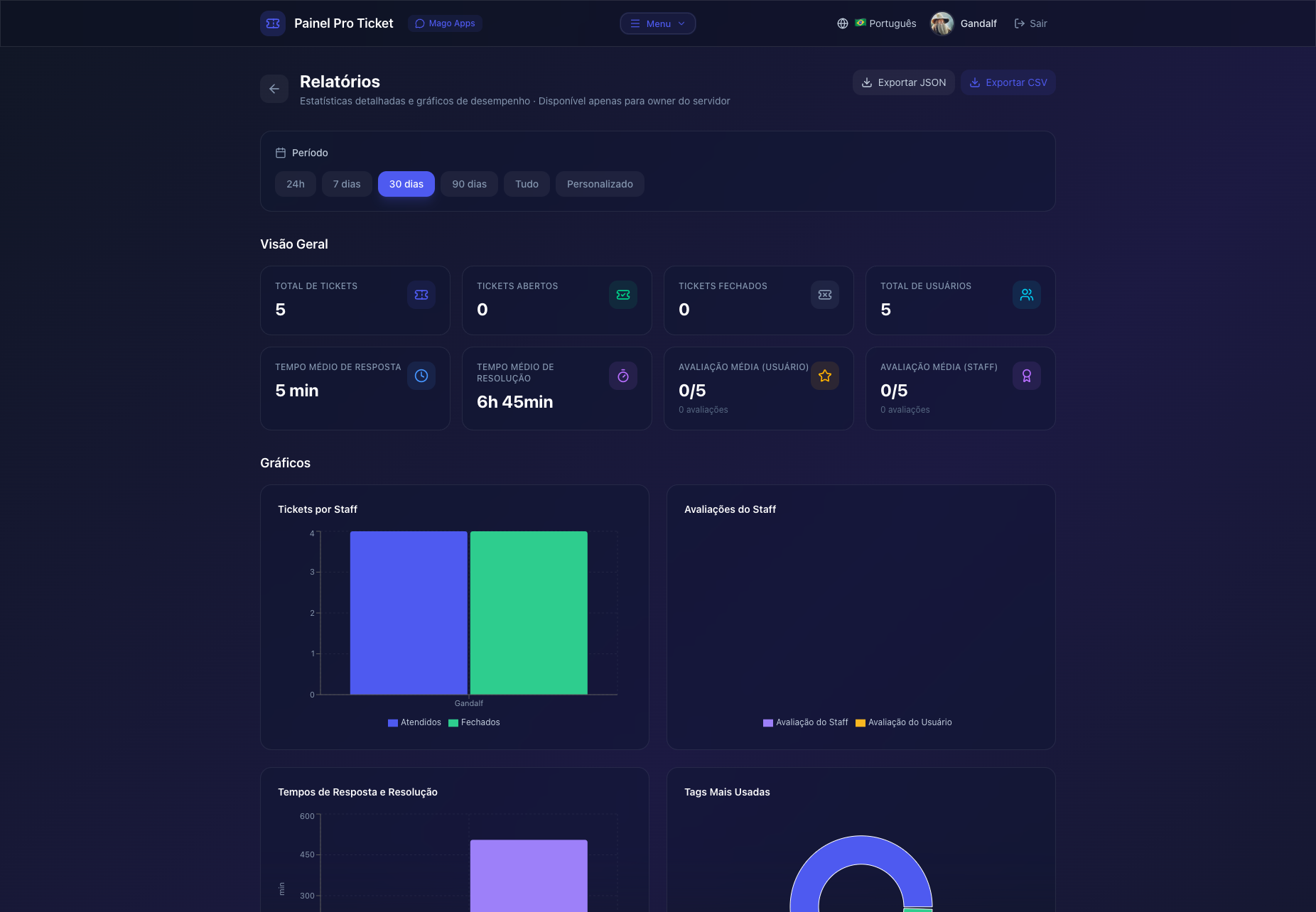
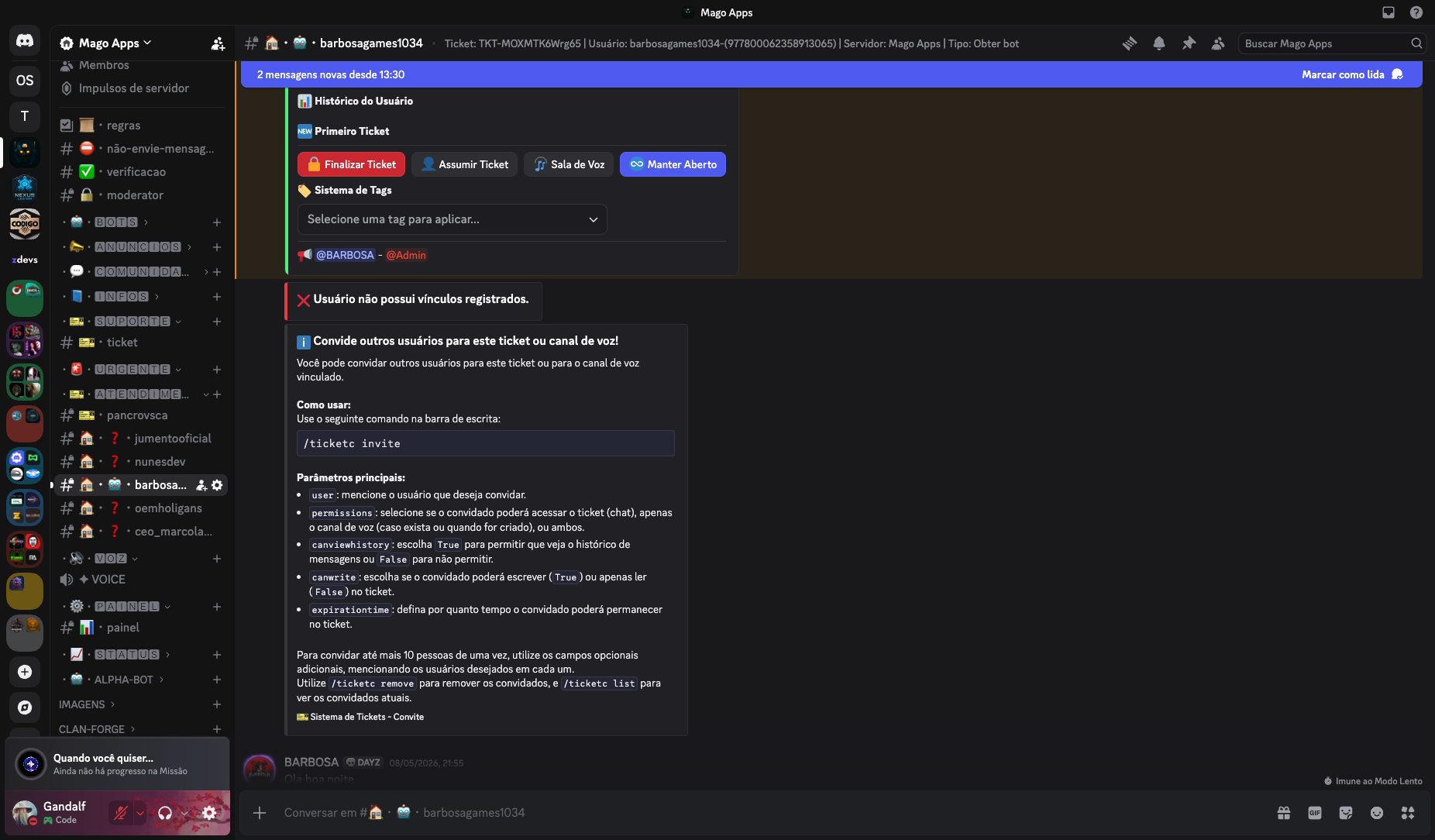
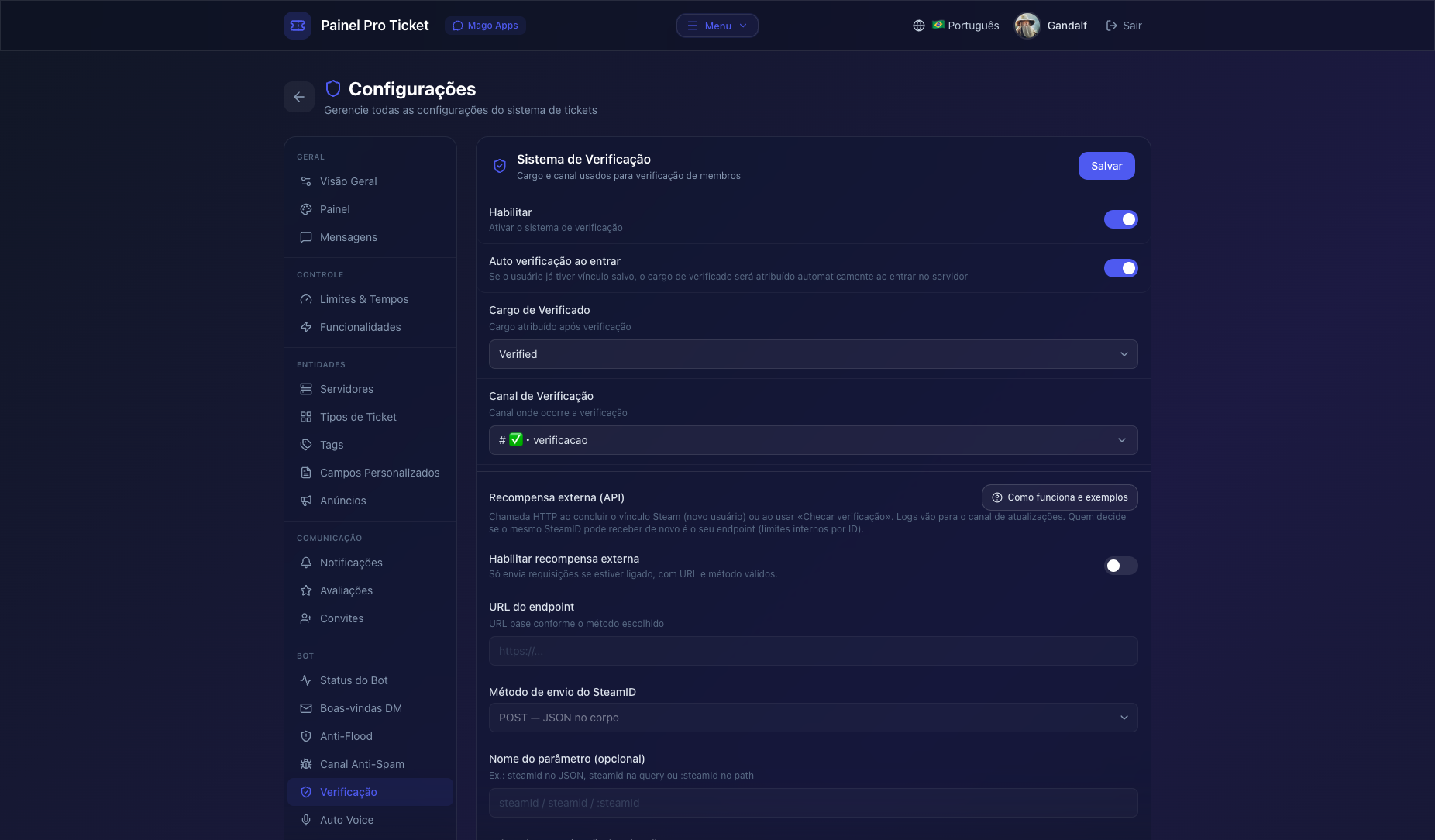
- Web panel — Discord OAuth login; live open tickets; staff/user stats; live transcripts; full settings UI (PT-BR / EN-US / ES-ES)
- Tickets — Game servers/just any server + types with dedicated staff roles; smart tags that can swap channel permissions (hand off to another team); custom fields, announcements, invites, claim/finalize, voice rooms, auto-close/reopen, blacklist, behavior score
- Ratings & reports — Mutual user↔staff ratings; scheduled or on-demand reports; charts + JSON/CSV export
- Steam verification — OAuth + verified role; optional external reward webhook; public API to lookup/create/delete Discord↔Steam links
- Moderation — Anti-flood (timeout) and anti-spam bait channel (kick / timeout / ban)
- Community modules — Channel messages (sticky / replace / post-only); text commands; mention replies; self-assign role menus (buttons / select / reactions)
- Also — Welcome DMs, auto-voice, notifications, 30+ slash commands (
/configt,/ticketadm, …)
Commands inside an open ticket
/close— Owner / Staff / Admin — Close the current ticket/finalize— Staff / Admin — Post finalize message (user closes or continues)/ticketc invite·remove·list— Owner* / Staff / Admin — Manage guests (access, history, expiry)/reputation positive·negative·view— Staff / Admin — Score or view ticket-owner reputation/timer— Staff / Admin — Deadline countdown with auto alert & mentions
Related (outside the ticket channel): /open — Staff/Admin open a ticket on behalf of another user.
*Owner invites only if enabled in settings. Channel buttons also cover claim, voice, tags, keep-open, etc.
More screenshots & details: docker-discord-bot-pro-ticket
Why Deploy Pro Ticket Discord Bot on Railway?
Railway hosts the full stack with minimal setup — MongoDB, SSL, and scaling included.
- Integrated MongoDB — Connected automatically via the template
- Automatic SSL/HTTPS — Required for Steam OAuth and web panel login
- One-Click Deploy — Pre-configured env vars; real-time logs; 24/7 uptime
Template Content
Pro Ticket Bot
jorgehenrrique/docker-discord-bot-pro-ticketGUILD_ID
ID do servidor Discord
BOT_TOKEN
Token do bot
DISCORD_CLIENT_SECRET
Client Secret do bot
MongoDB
mongo:8.2.4