
Deploy S3 Explorer
A file explorer interface for managing storage buckets
S3 Explorer
Just deployed
S3 Explorer
A secure, self-hosted web-based file manager for S3-compatible storage buckets.


Overview
Managing S3 buckets often requires command-line tools or provider-specific dashboards that vary significantly in usability. S3 Explorer unifies this experience by offering a single, consistent web interface to upload, download, and organize files across any S3-compatible provider.
Supported Providers:
- Railway Buckets
- AWS S3
- Cloudflare R2
- MinIO
- DigitalOcean Spaces
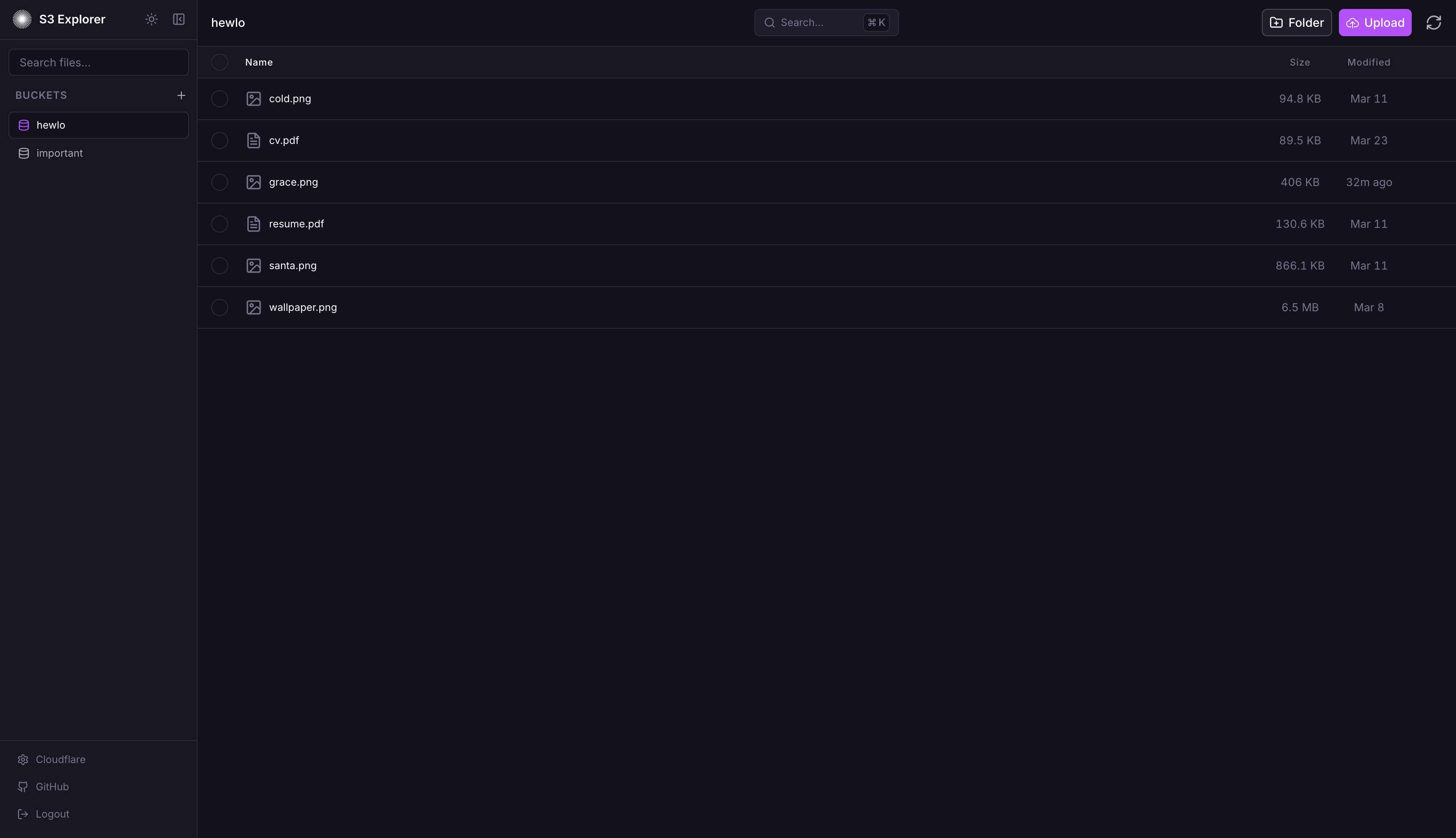
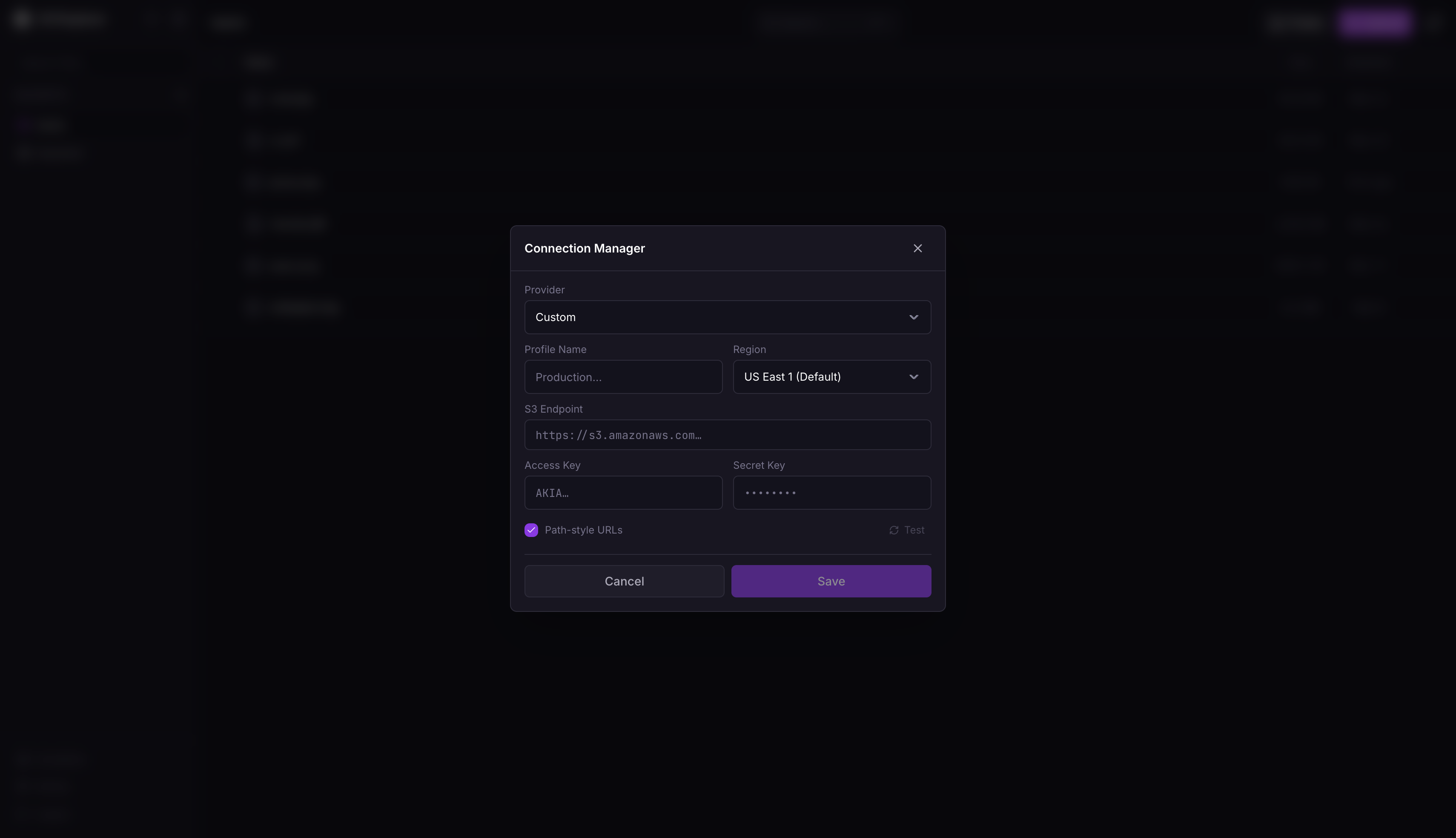
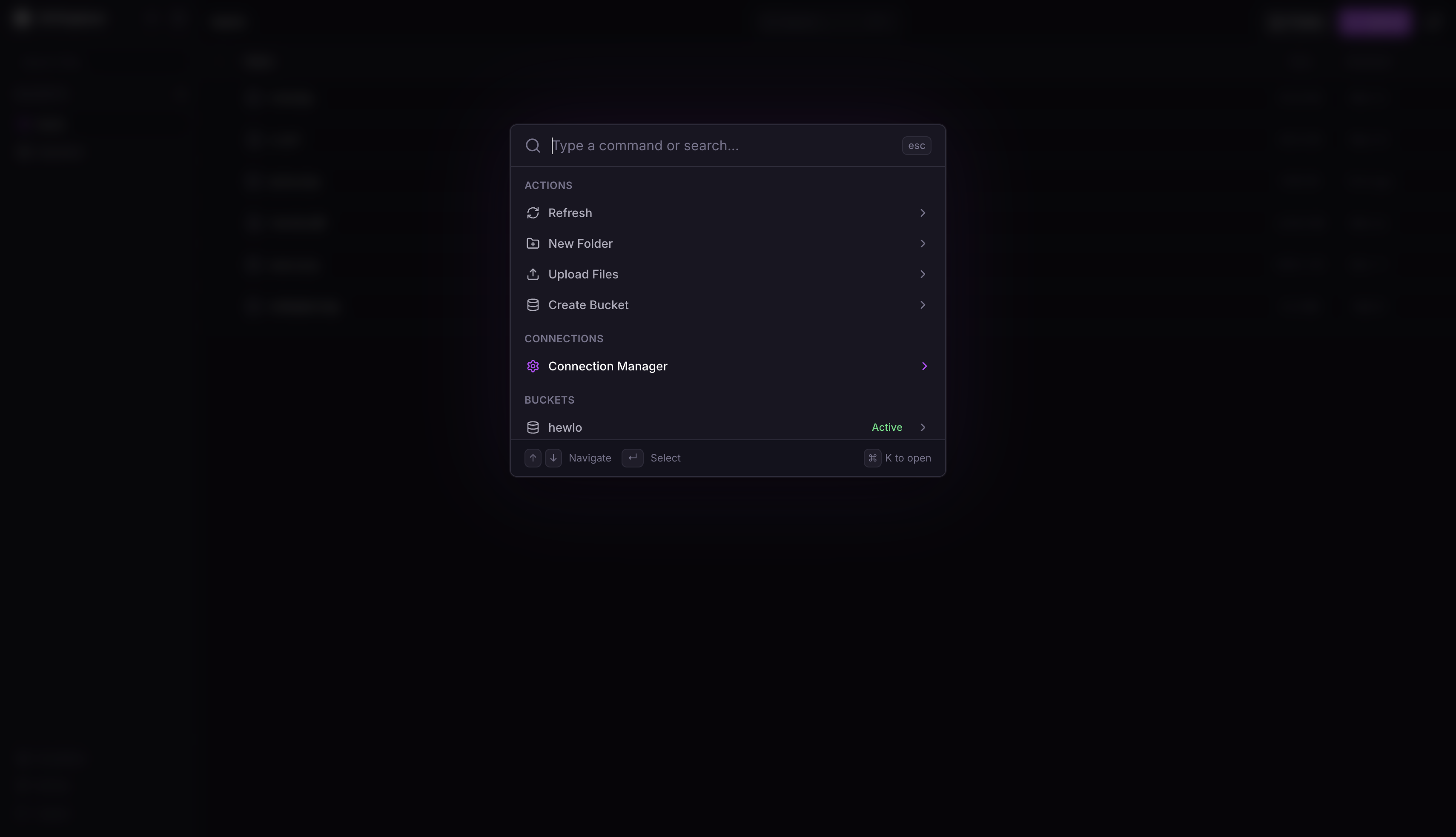
Screenshots
Security Features
- Password Auth: Single password via env var or setup wizard (Argon2id hashed)
- Encrypted Credentials: S3 credentials encrypted at rest with AES-256-GCM
- Secure Sessions: Server-side SQLite sessions with httpOnly/secure/sameSite=strict cookies
- Rate Limiting: IP-based, 10 attempts per 15 min, 30 min lockout
- Security Headers: Helmet.js enabled (CSP, HSTS, etc.)
- No Client Storage: Credentials never stored in browser localStorage
Features
File Management
- Drag-and-drop file uploads
- Create folders for organization
- Rename files and folders
- Delete files and folders with confirmation
- Batch select and delete multiple items
- Download files through secure server proxy
- In-browser file preview
Multi-Connection Support
- Store up to 100 S3 connections
- Instant switching between connections
- All credentials encrypted server-side
Keyboard Navigation
Cmd+K/Ctrl+K: Open command paletteCmd+,/Ctrl+,: Open connection managerCmd+U/Ctrl+U: Upload filesEscape: Close active modal
Deployment
Railway (Recommended)

- Fork repo
- New project → Deploy from GitHub
- Add volume: mount path
/data - Set environment variables:
APP_PASSWORD: Strong password (12+ chars, mixed case, numbers, symbols)SESSION_SECRET: Random 32+ character string (useopenssl rand -hex 32)
Or skip these and configure through the setup wizard on first launch.
Docker
docker run -d --name s3explorer --restart unless-stopped -p 3000:3000 -e APP_PASSWORD='YourStr0ng!Pass#2024' -e SESSION_SECRET="$(openssl rand -hex 32)" -v s3explorer_data:/data ghcr.io/subratomandal/s3explorer:latest
Docker Compose
services:
  s3-explorer:
    image: ghcr.io/subratomandal/s3explorer:latest
    restart: unless-stopped
    ports:
      - "3000:3000"
    environment:
      - APP_PASSWORD=YourStr0ng!Pass#2024
      - SESSION_SECRET= # Generate with: openssl rand -hex 32
    volumes:
      - s3explorer_data:/data

volumes:
  s3explorer_data:
> Set SESSION_SECRET to the output of openssl rand -hex 32. Do not use the example passwords in production.
Local Development
npm run install:all

export APP_PASSWORD='DevPassword123!'
export SESSION_SECRET='dev-secret-not-for-production-use!!'
export DATA_DIR='./data'

npm run dev
Backend runs on :3000, frontend on :5173.
Environment Variables
APP_PASSWORD(optional): Login password. Must be 12+ chars with upper, lower, number, special char. If not set, a setup wizard will appear on first launch to configure it.SESSION_SECRET(optional): Session signing key. Useopenssl rand -hex 32. If not set, a random secret is generated (sessions will be lost on server restart). Can also be configured through the setup wizard.DATA_DIR(optional): SQLite/key storage path. Default:/dataPORT(optional): Server port. Default:3000NODE_ENV(optional): Environment (production/development)
Provider Setup Guide
Railway Buckets
- Create a Bucket in your Railway project canvas
- Go to the Bucket's Credentials tab
- Use values:
- Endpoint: Your Bucket endpoint from the Credentials tab
- Access Key: Your Bucket Access Key ID
- Secret Key: Your Bucket Secret Access Key
Cloudflare R2
- Go to Cloudflare Dashboard → R2 Object Storage
- Click Manage R2 API Tokens
- Create token with Admin Read & Write permissions
- Use values:
- Endpoint:
https://.r2.cloudflarestorage.com - Access Key: Your R2 Access Key ID
- Secret Key: Your R2 Secret Access Key
- Endpoint:
AWS S3
- Go to AWS Console → IAM
- Create user with
AmazonS3FullAccesspolicy - Create access key under Security Credentials
- Use values:
- Endpoint:
https://s3..amazonaws.com - Access Key: Generated Access Key ID
- Secret Key: Generated Secret Access Key
- Endpoint:
DigitalOcean Spaces
- Go to DigitalOcean Dashboard → Spaces Object Storage
- Navigate to API → Spaces Keys
- Generate new key
- Use values:
- Endpoint:
https://.digitaloceanspaces.com(e.g.,https://nyc3.digitaloceanspaces.com) - Access Key: Generated Spaces Access Key
- Secret Key: Generated Spaces Secret Key
- Endpoint:
MinIO
- Access your MinIO console
- Navigate to Access Keys
- Create new access key
- Use values:
- Endpoint: Your MinIO URL (e.g.,
https://minio.example.com) - Access Key: Generated Access Key
- Secret Key: Generated Secret Key
- Endpoint: Your MinIO URL (e.g.,
Stack
- Frontend: React, Tailwind, Vite
- Backend: Express, TypeScript
- Database: SQLite (better-sqlite3)
- Auth: Argon2, express-session
License
MIT
Created by @subratomandal
Template Content
S3 Explorer
subratomandal/s3explorer